Customize your agent
This guide covers the configuration options available in the agent editor. The editor is organized into four tabs: Prompt, Models, Advanced, and Actions.
Prerequisites
Follow the quickstart to create your first Agent Studio agent.
Prompt
The Prompt tab contains the core instructions that define your agent's identity and behavior.
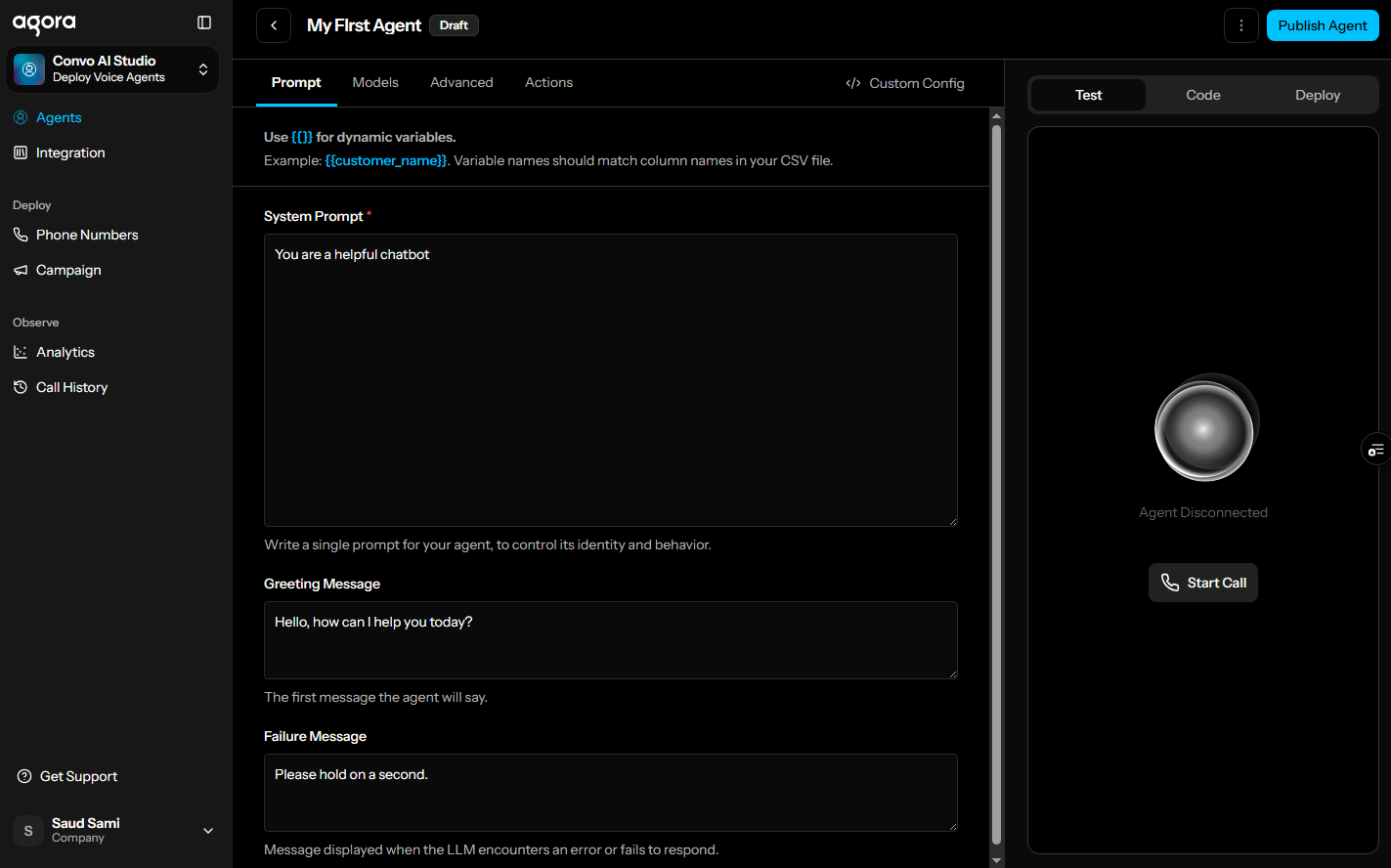
- System Prompt: Defines how your agent behaves. For example:
You are a helpful customer support assistant.See Prompt design for guidance on writing effective prompts. - Greeting Message: The first thing your agent says when a session starts. For example:
Hello! How can I help you today? - Failure Message: The message the agent speaks when the LLM fails to respond or returns an error. For example:
Please hold on a second.
See Template variables to customize the system prompt, greeting message, and failure message for each user.
Models
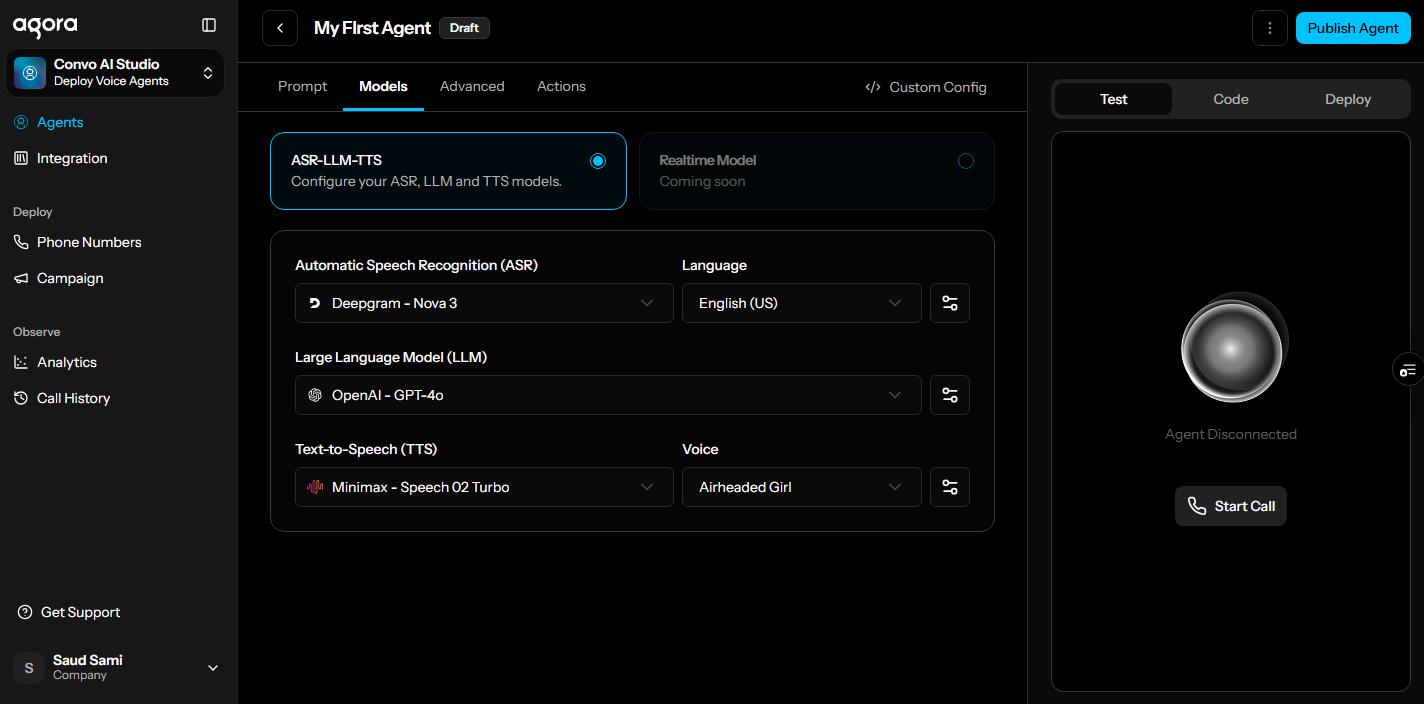
The Models tab is where you select the ASR, LLM, and TTS services your agent uses. The dropdowns list vendor-model combinations that support Agora Managed Key.
ASR
- Automatic Speech Recognition (ASR): Select a vendor-model from the dropdown.
- Language: Select the primary language for agent interaction using the BCP-47 language tag.
For advanced ASR settings, click the settings icon next to the ASR dropdown. For supported vendors, see Supported ASR vendors.
LLM
- Large Language Model (LLM): Select a vendor-model from the dropdown.
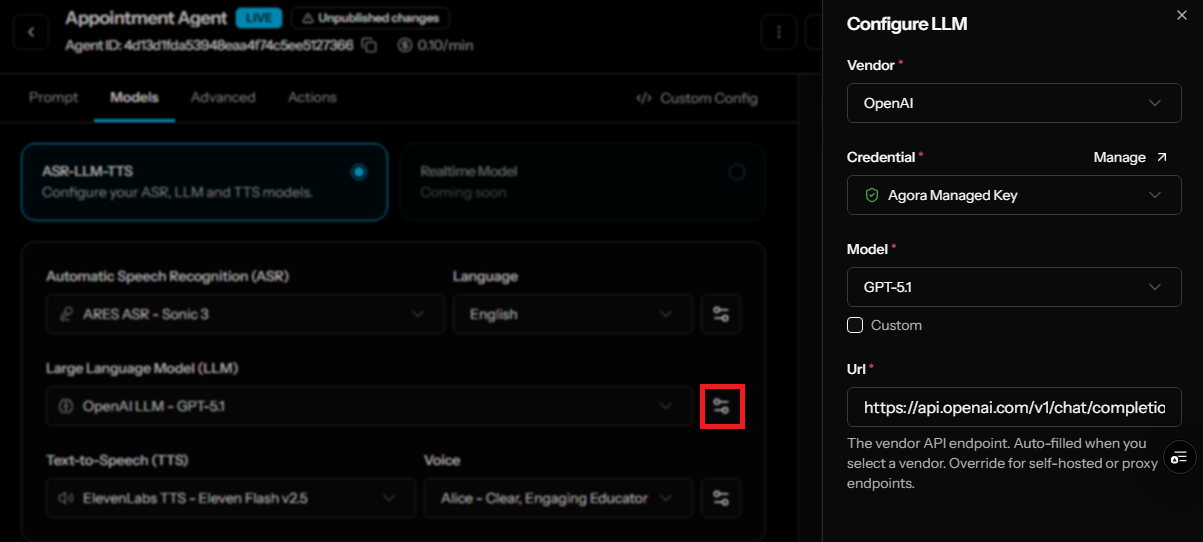
For advanced LLM settings, click the settings icon next to the LLM dropdown. For supported vendors, see Supported LLM vendors.
TTS
- Text-to-Speech (TTS): Select a vendor-model from the dropdown.
- Voice: Select a voice for the selected TTS vendor-model.
For advanced TTS settings, click the settings icon next to the TTS dropdown. For supported vendors, see Supported TTS vendors.
Bring your own API key (BYOK)
To use your own API key or to select a vendor or model not available under Agora Managed Key, click the settings icon next to the relevant dropdown. This opens a configuration panel where you can select any supported vendor and add your own API credentials. See Manage integrations for details on adding credentials.
Advanced
The Advanced tab contains configuration options for turn detection, speech detection, selective attention locking, filler words, and conversation history.
- Select Project: The Agora project this agent is associated with. Billing and usage are tracked under this project.
Turn detection
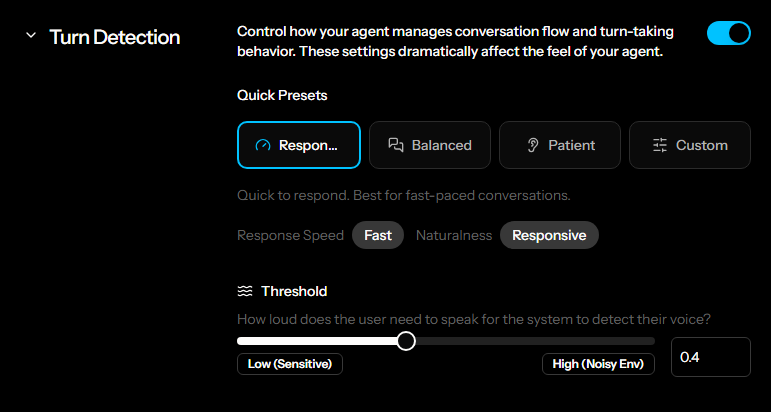
Turn detection controls how the agent manages conversation flow and turn-taking behavior. Use the Quick Presets to get started quickly, or select Custom to configure individual parameters.
Quick Presets:
-
Responsive: Optimized for fast-paced conversations
-
Balanced: A middle ground between responsiveness and naturalness. Suitable for most use-cases.
-
Patient: Optimized for slower, more thoughtful conversations.
-
Custom: Manually configure individual parameters.
-
Threshold: The audio level required for the system to detect speech. Lower values increase sensitivity and work better in quiet environments; higher values help filter out background noise.
Start of speech
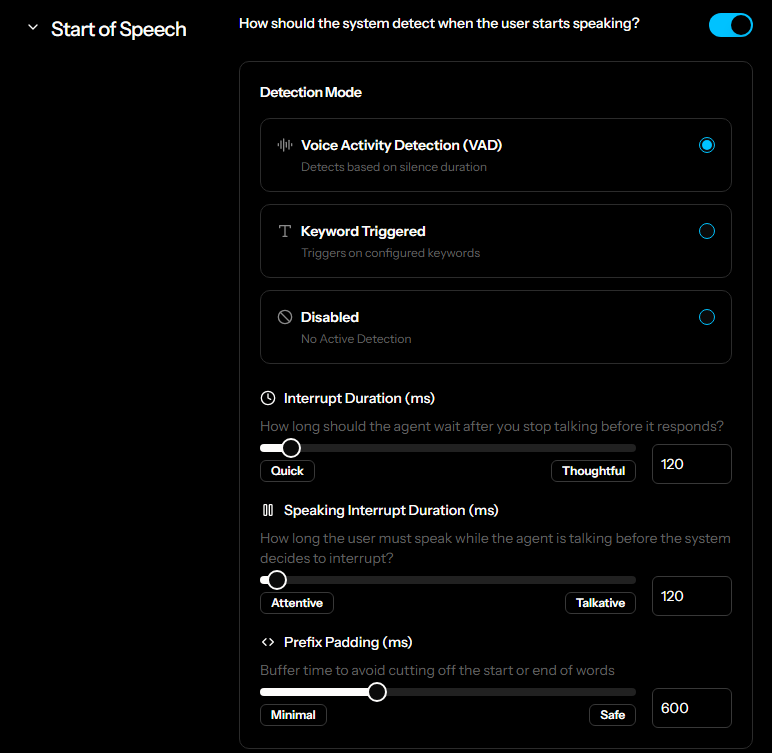
Controls how the system detects when the user starts speaking.
-
Detection Mode: Select one of the following:
- Voice Activity Detection (VAD): Detects speech based on silence duration.
- Keyword Triggered: Triggers detection on configured keywords.
- Disabled: No active detection.
-
Interrupt Duration (ms): How long the agent waits after you stop talking before it responds. Lower values result in faster responses; higher values give the user more time to speak.
-
Speaking Interrupt Duration (ms): How long the user must speak while the agent is talking before the system decides to interrupt. Lower values make the agent easier to interrupt; higher values make it less interruptible.
-
Prefix Padding (ms): Buffer time added to avoid cutting off the start or end of words. Lower values reduce latency; higher values reduce the chance of clipping.
End of speech
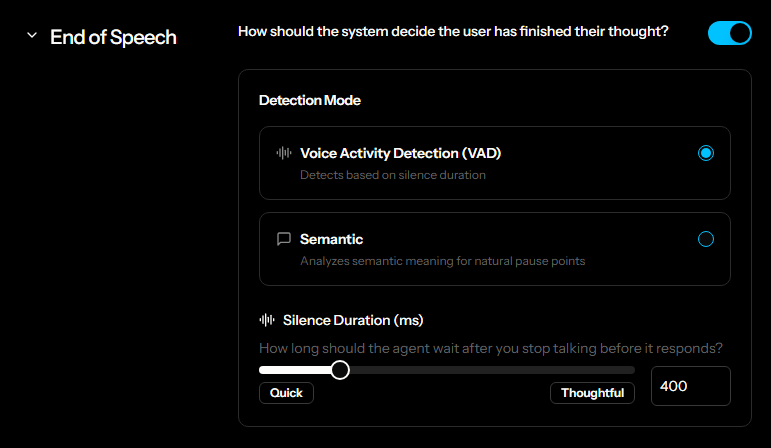
Controls how the system decides the user has finished their thought.
-
Detection Mode: Select one of the following:
- Voice Activity Detection (VAD): Detects end of speech based on silence duration.
- Semantic: Analyzes the semantic meaning of speech to identify natural pause points. Recommended for more natural conversations.
-
Silence Duration (ms): How long the agent waits after you stop talking before it considers you finished. Lower values result in faster responses; higher values give the user more time to complete their thought.
Selective Attention Locking (SAL)
Helps the agent focus on the right voice while filtering out background conversations and noise.
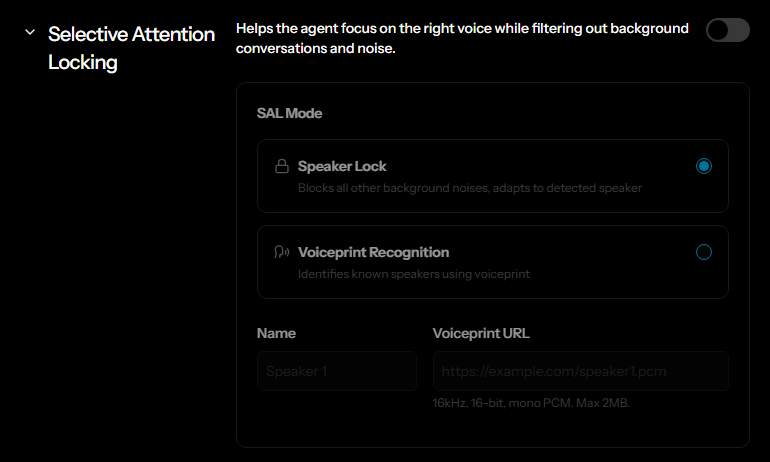
- SAL Mode: Select one of the following:
- Speaker Lock: Blocks all other background noise and adapts to the detected speaker.
- Voiceprint Recognition: Identifies known speakers using voiceprint. When enabled, configure the following:
- Name: A label for the speaker.
- Voiceprint URL: URL to a voiceprint audio file. Supported format: 16kHz, 16-bit, mono PCM. Maximum size: 2 MB.
Filler words
When enabled, the agent uses natural filler phrases while processing a response, reducing awkward silences.
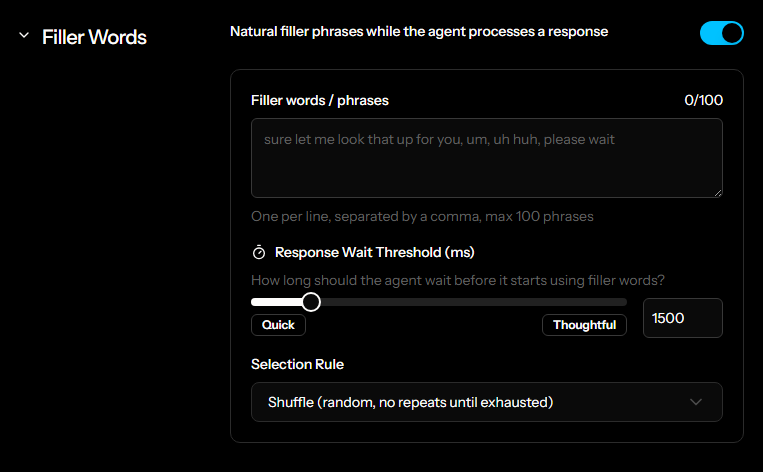
- Filler words / phrases: Enter up to 100 filler phrases, one per line. For example:
- Response Wait Threshold (ms): How long the agent waits before it starts using filler words. Lower values trigger fillers sooner; higher values give the LLM more time to respond before fillers are used.
- Selection Rule: Controls how filler phrases are selected:
- Shuffle: Random, no repeats until all phrases are exhausted.
- Round Robin: Played sequentially.
History
- Max History: The maximum number of conversation history messages included in context. Higher values give the agent more memory of the conversation but increase LLM token usage.
Actions
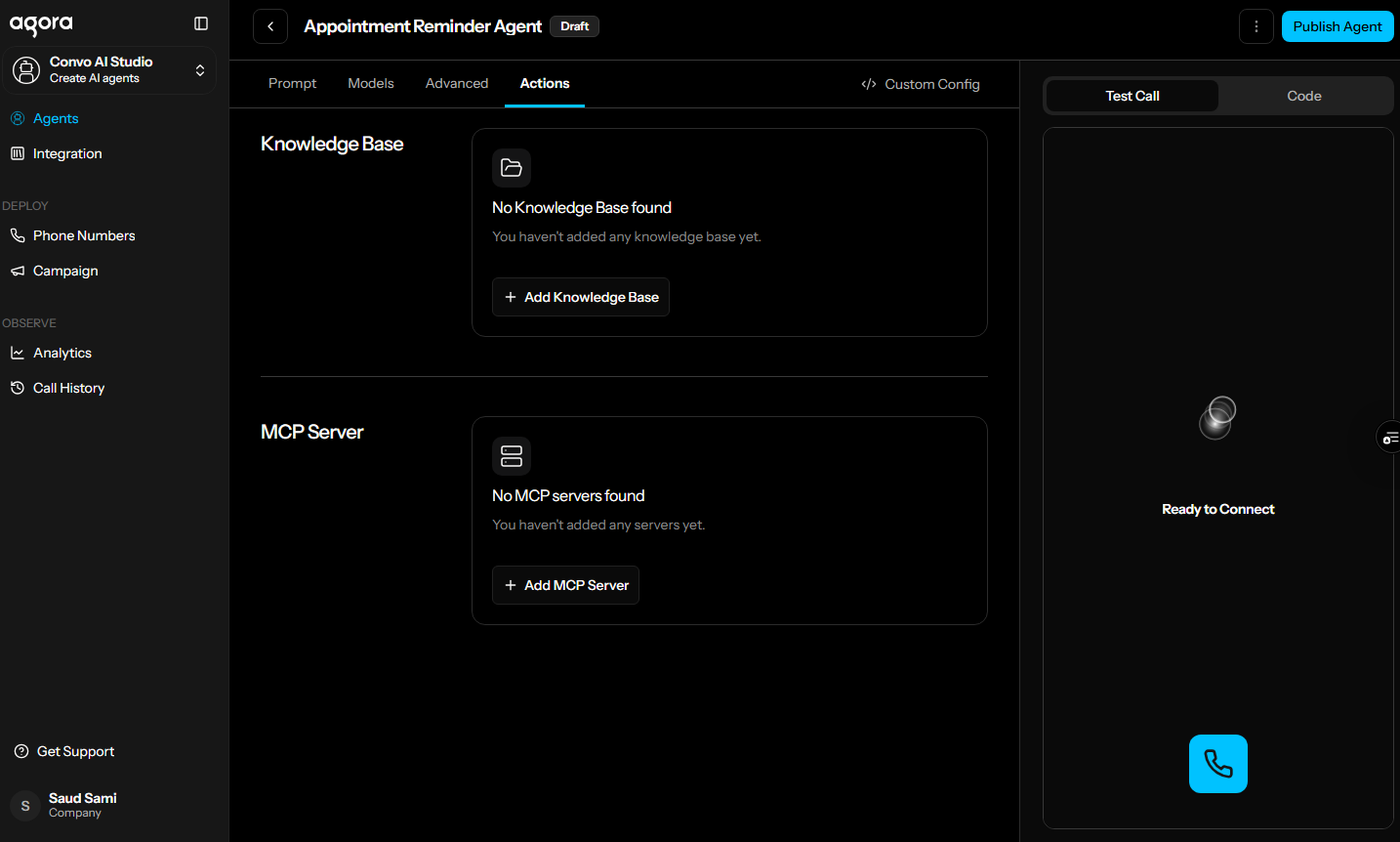
The Actions tab is where you connect your agent to external data and services.
Knowledge base
A knowledge base provides your agent with additional context from reference documents. Click + Add Knowledge Base to select or create a knowledge base. See Add knowledge base.
MCP Server
MCP servers enable your agent to call tools provided by external services. Click + Add MCP Server to select or create an MCP server. See Add MCP server.
Next steps
- Manage integrations: Manage credentials, MCP servers, and knowledge bases for reuse across agents
- Test your agent: Learn more about testing features and troubleshooting agent behavior
- Publish your agent: Publish your agent to production